
Start and name a group chat
Create a group chat the same way you start a one-on-one chat.
-
Select New chat
 at the top of your chat list.
 -
Select the down arrow to the far right of the To field and then type a name for the chat in the Group name field.
-
Type the names of the people you’d like to add in the To field.

Start a new chat and select the down arrow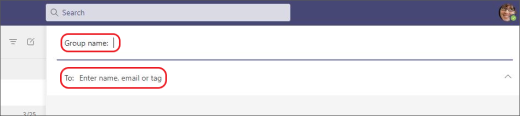
Type a name for the group chat and add people
This starts a new conversation. Everyone who has access to the group chat can send messages.
Note: You can include up to 250 people in a group chat.
Comments
Please sign in to leave a comment.