
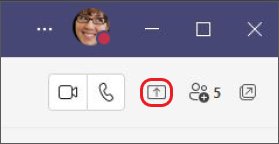
When you're chatting with one or more people in Teams, you can instantly share your screen. Go to the chat controls in the upper-right corner and select Share  .
.
Choose a window to share that specific program and its content, or select Desktop to share everything on your screen.
The other participants in the chat will receive a notification asking them to accept your screen share. Once they do, they'll be able to see your screen and continue the chat.
When you're done sharing, go to your meeting controls and select Stop sharing.
Comments
Please sign in to leave a comment.