
While you're in a meeting in Teams, you can access different functions from the meeting controls at the top of your screen. This will help you easily customize your view, participate with others, and more.

Show or hide all participants
If you'd like to see a list of everyone in a meeting—or a list of others invited but not currently in the meeting—select People  .
.
The meeting participants will show on the right side of your screen. Above the list of participants, you can also invite someone to the meeting or share the meeting invite.
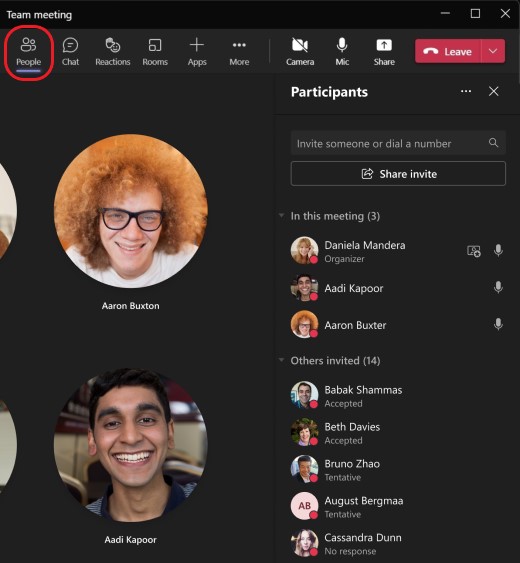
To hide the list, select People again.
To learn more, see Invite people to a meeting.
Show or hide the meeting conversation
To access the meeting chat, select Chat  .
.
From here, you can view and participate in the meeting group chat.
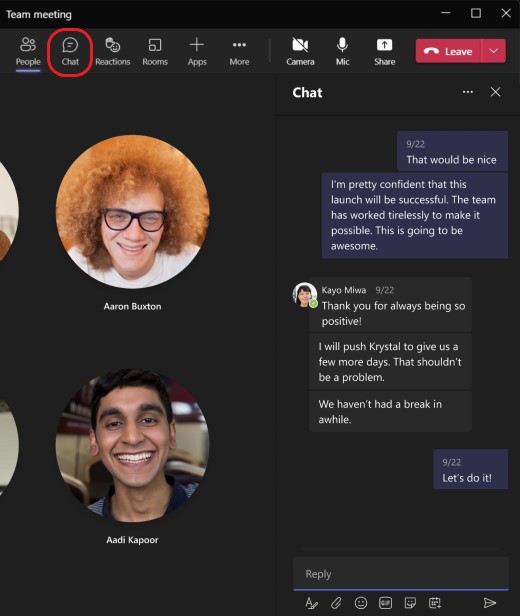
To hide it, select Chat again.
To learn more, see Chat in a Teams meeting.
Use reactions
You can use reactions to express yourself or raise your hand during a meeting.
To react in a meeting:
-
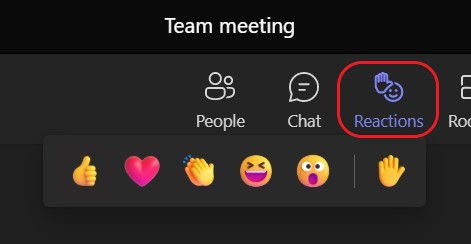
Hover over Reactions
 .
. -
You can choose between Like, Love, Applause, Laugh, and Surprised.
The reaction you select will appear for a few seconds on screen for everyone in the meeting.
You can also choose Raise hand, which will remain displayed for everyone until you or the meeting presenter lowers your hand.
Create a breakout room
If you're a meeting organizer or presenter who's been appointed a breakout rooms manager, you can select Rooms  to create and assign people to breakout rooms.
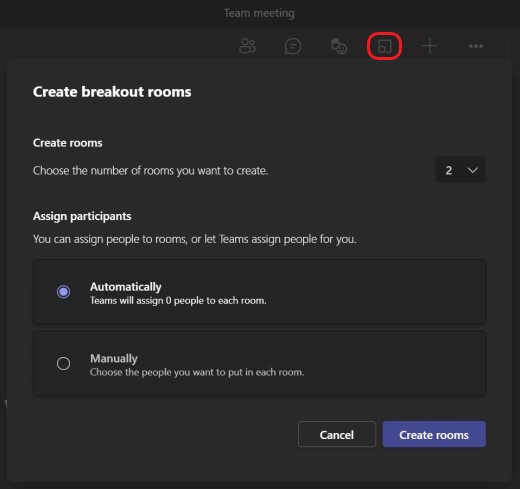
To learn more, see Use breakout rooms and Join a breakout room.
Add an app
If you're a meeting organizer or presenter, you can select Apps  to search for and add an app for the meeting.
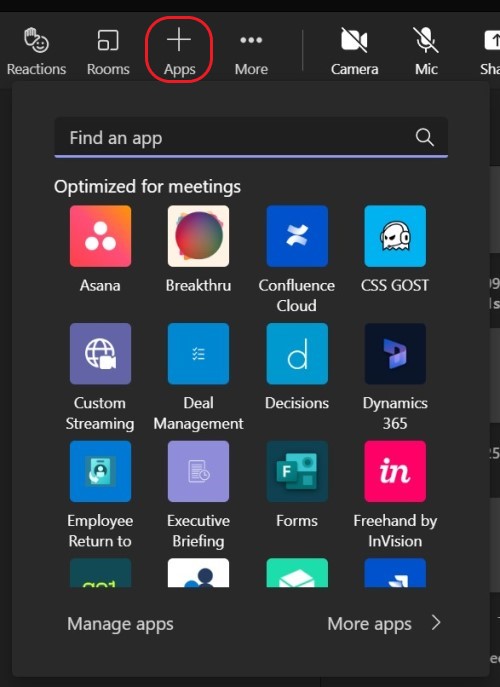
To learn more, see Use apps in Teams meetings.
More actions
Select More  to open a menu and access other actions you can take in the meeting.
Some popular options you'll see in the more actions menu include Start recording, Apply background effects, and Turn off incoming video.
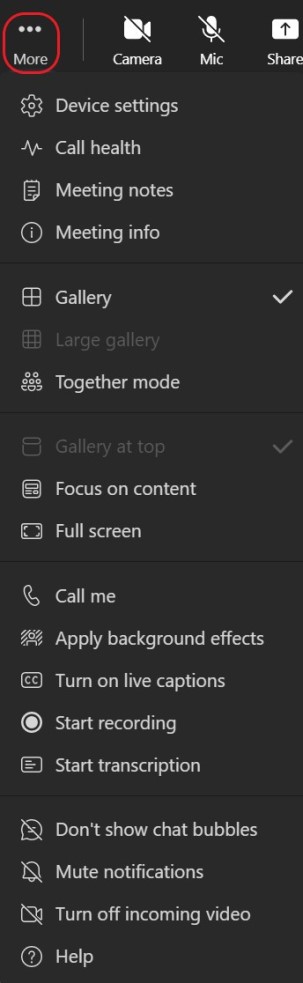
To learn more, see Customize your meeting view.
Turn your camera on or off
To turn your camera on:
-
Hover over Camera
 .
. -
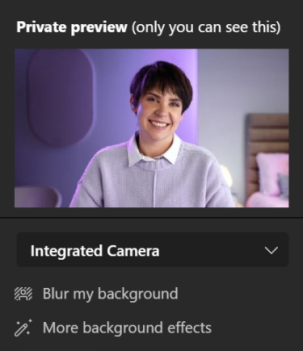
You'll see a private preview of your video.
-
You can choose Blur my background or More background effects to change how you appear in the meeting.
-
Then select Camera
to turn it on.
To turn your camera off, select Camera  again.
To learn more, see Using video.
Note: If you're attending a live event or public (open registration) webinar, your camera is turned off by default. To learn more, see Attend a live event and Get started with Teams webinars.
Mute or unmute your mic
If you're already muted in a meeting and you'd like to speak:
-
Select Mic
 to unmute your mic.
 -
To mute again, select Mic
 .
.
To learn more, see Muting and unmuting your mic.
Note: If you're attending a live event or public (open registration) webinar, your mic is turned off by default. To learn more, see Attend a live event and Get started with Teams webinars.
Share your screen
To share your screen or other content during a meeting:
-
Select Share
 .
. -
Choose to present your entire screen, a window, a PowerPoint file, or a whiteboard.
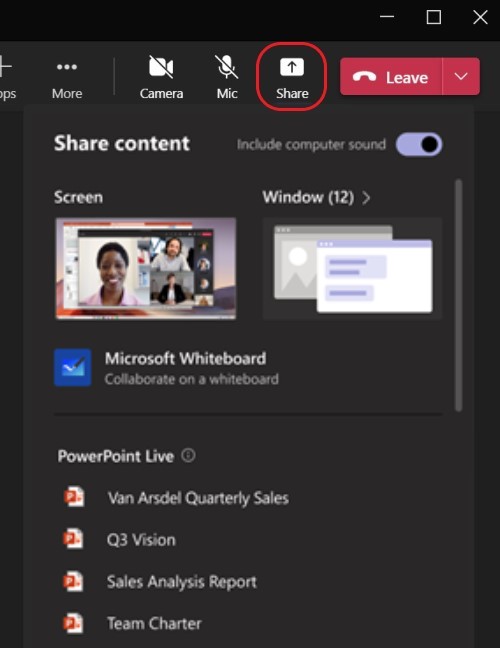
To learn more, see Share content in a meeting in Teams.
Leave or end a meeting
To leave a meeting, select Leave  . If you're the meeting presenter, you can also select the dropdown and choose End meeting. Only meeting presenters can end meetings.

Comments
Please sign in to leave a comment.