
There are a lot of ways to customize your video experience—and the video you share with others—when you join a Teams meeting or call.
Turn your video on or off
Before a meeting
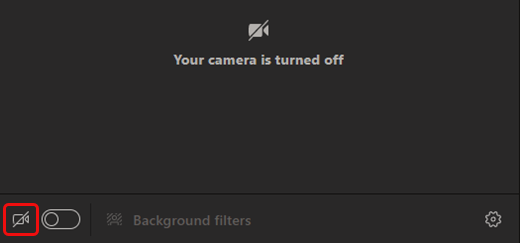
To turn on your video before a meeting, just select Camera  right before you join.
During a meeting
You might want to turn your video on and off over the course of a meeting—if you'd prefer people only see you while you're talking, for example. Go to the meeting controls anytime during the meeting and select Camera  .
.

Change your background
If you want to change what appears behind you in your video, you can either blur your background, or replace it entirely with any image you want.
When you're setting up your audio and video before a meeting, select Background filters  (just below the video image). You'll see your background options on the right.
Note: If you don't see the option to turn on background effects, the feature might not be available on your device yet.
For more details about customizing your background, see Change your background for a Teams meeting.
Change your view
Customize how you see other people's video during a Teams meeting. For example, you may want to see as many video feeds as you can at one time in a large meeting.
Note: To provide the best possible audio and video quality, we might decrease the number of videos you're seeing at once if you're running a little low on bandwidth or device memory.
-
Join your meeting.
-
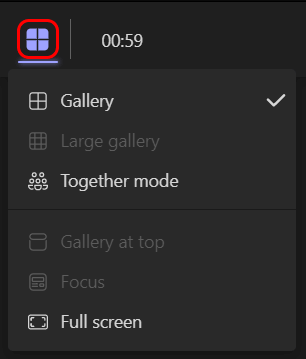
In the meeting controls, select Change your view
 .
.Some options may not be available depending on the size of the meeting.
Notes:
-
The Change your view feature is available as part of the public preview program and may undergo further changes before being released publicly. To get access to this and other upcoming features, switch to the Teams public preview.
-
If you're not using public preview, select More options
 in the meeting controls to find these options.
-
-
Choose one of the following view options:
-
Gallery (default view)
-
Gallery
The default view when you join a meeting shows up to nine other people on your screen at the same time. If there are more than nine others in attendance, Teams prioritizes the people who have their video turned on and those who're speaking the most.
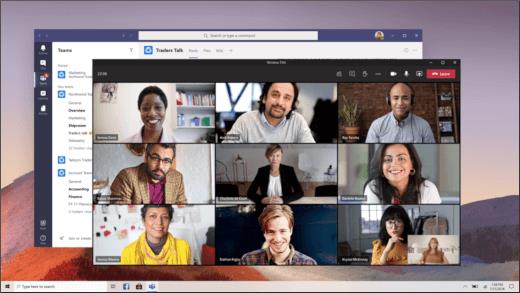
For people who haven't turned on their video, Teams shows their profile pic instead (or their initials if they haven't added one).
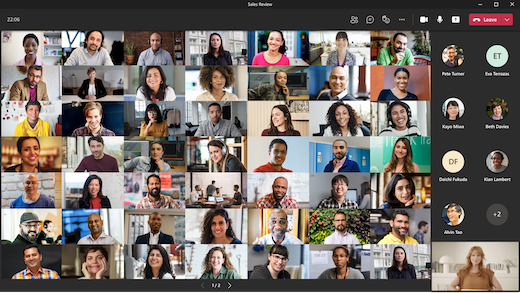
Large gallery
See the videos of up to 49 other people at once. This option is available when at least 10 people have their cameras turned on.
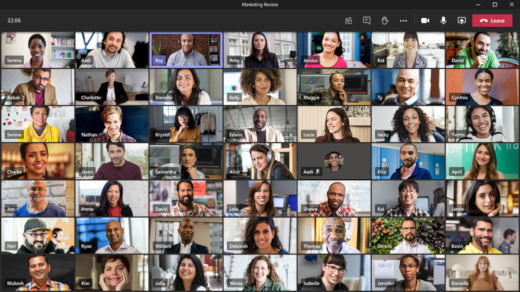
Note: If no one is sharing video, Large gallery won't be selectable in the menu.
When more than 49 participants join a Teams meetings, see them all in a gallery with pages. In Large gallery view, navigation controls < > appear at the bottom of the gallery when there are more than 49 participants. Use these navigation controls to view or engage with more participants.
Together mode
Lets you feel like you're in the same shared space with everyone in the meeting. Together mode is available when there are at least five people in the meeting.

If you're a meeting organizer or presenter, you have an assortment of scenes to choose from. To change the scene, click on the scene name in the bottom left corner of your screen.
Under Choose a scene, pick the one you want and select Apply. The scene will change for everyone who's in Together mode.
Pin someone's video
To pin someone's video to your view regardless of who's talking, select More options in their video feed (next to their name) and choose Pin.
Pin your own video
To pin your own video, select More options in your video feed (next to your name) and choose Pin for me. This will pin your video for your own view, others won't see you pinned. If you no longer want to be pinned, select More options > Unpin for me.
Spotlight a video
Spotlighting a video is like pinning it for everyone in the meeting. If you're an organizer or a presenter, you can choose anyone's video (including your own) to be the main video people see.
To spotlight someone else's video, right-click on the one you want and select Spotlight.
To spotlight your own video, first select Show participants. Then, under Participants, right-click your name and select Spotlight. You can spotlight anyone else's video this way, as well.
Hide your own video
To hide your own video, select More options in your video feed (next to your name) and choose Hide for me. This will hide your video for your own view, others will still see your video. If you no longer want to be hidden, select More options > Unhide for me.
Reframe a video
Teams crops some videos to make them fit your screen better. If you want a different view of a particular video—for example, if someone’s cropped out of the video or it only shows part of their face—select More options in their video feed then Fit to frame to see the entire video.
Select Fill frame to see a closer, cropped view.
Comments
Please sign in to leave a comment.