
It's simple and quick to pop out your one-on-one or group chat into a separate window. Then, resize, reposition, or close the window if you want to. It’s a good way to get more done when you’re in a meeting or in a call. (Note that you can pop out multiple conversations, but not the same chat twice.)
Tip: To do other things (like scheduling meetings, attaching a OneDrive File, adding apps), return to the main app to find those familiar features. You don't need to close the pop-out chat window.
Note: The Pop-out chat feature is currently available in the desktop app for Windows and Mac only. It's not yet supported for Teams on the web, Linux, or mobile.
There are a few options to pop out a chat in Teams. Here are a few different methods:
From the chat list
-
On the left side of Teams, select Chat
 to open the chat list.
 -
Find the chat you want.
-
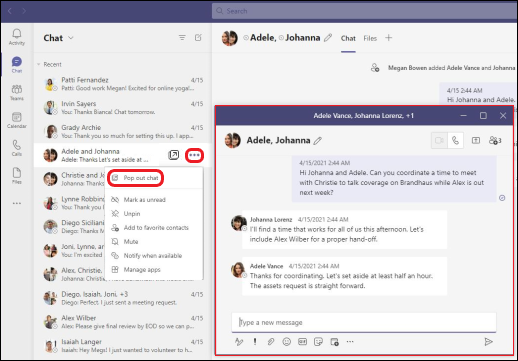
Select More options
 > Pop-out chat
  . Or, double-click the chat name and you’ll see a new pop-out chat window.
By hovering over a chat
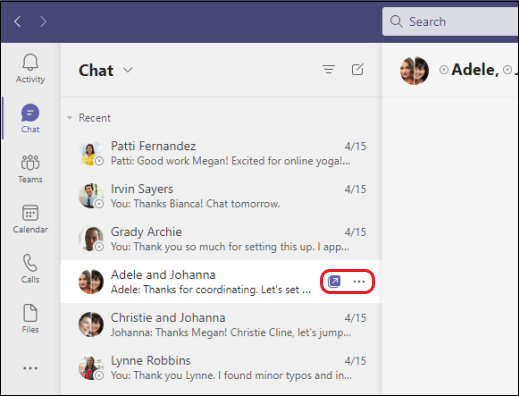
When you hover over a chat, you'll see the pop-out chat icon . Select it to open a new pop-out chat window.
From the chat itself
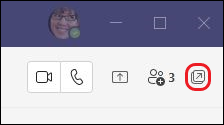
Go to the upper-right corner of the chat and select Pop-out chat .
Comments
Please sign in to leave a comment.