
Privileges for macOS is designed to allow users to work as a standard user for day-to-day use, by providing a quick and easy way to get administrator rights when needed. When you do need admin rights, you can get them by clicking on the Privileges icon in your Dock.
To use the Privileges application, follow these simple instructions:
-
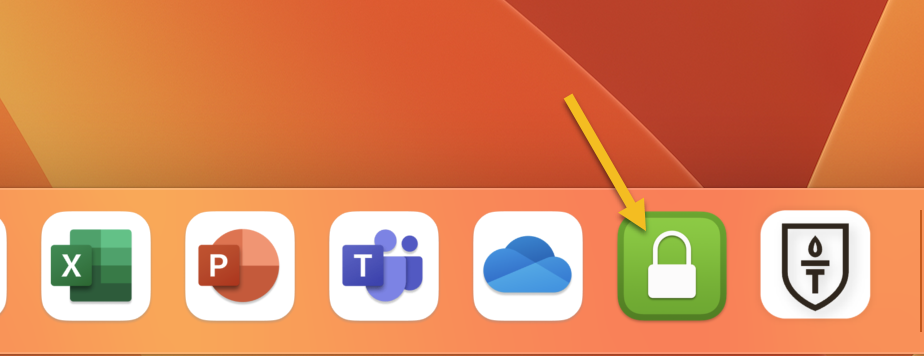
Locate the Privileges app (it's normally an icon of a white, closed padlock surrounded by a green background) from the Dock:
-
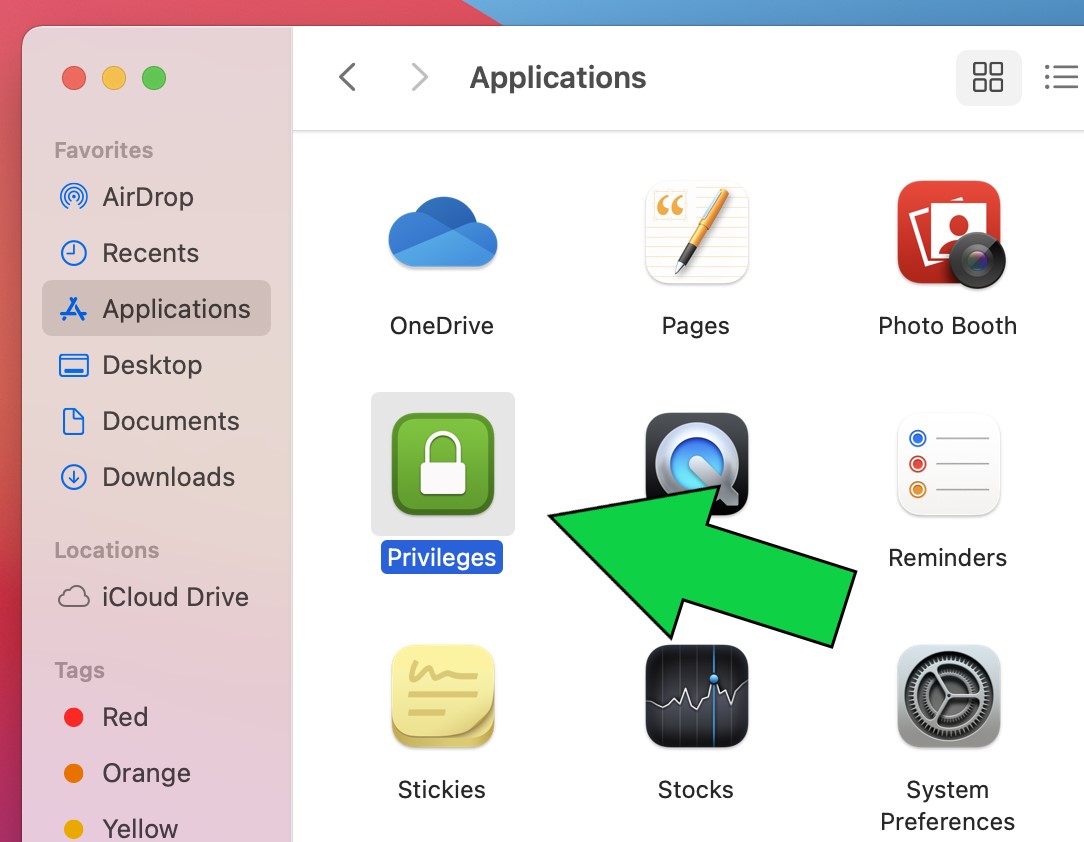
If it's not in your Dock, you can Toggle Privileges from your Applications folder:
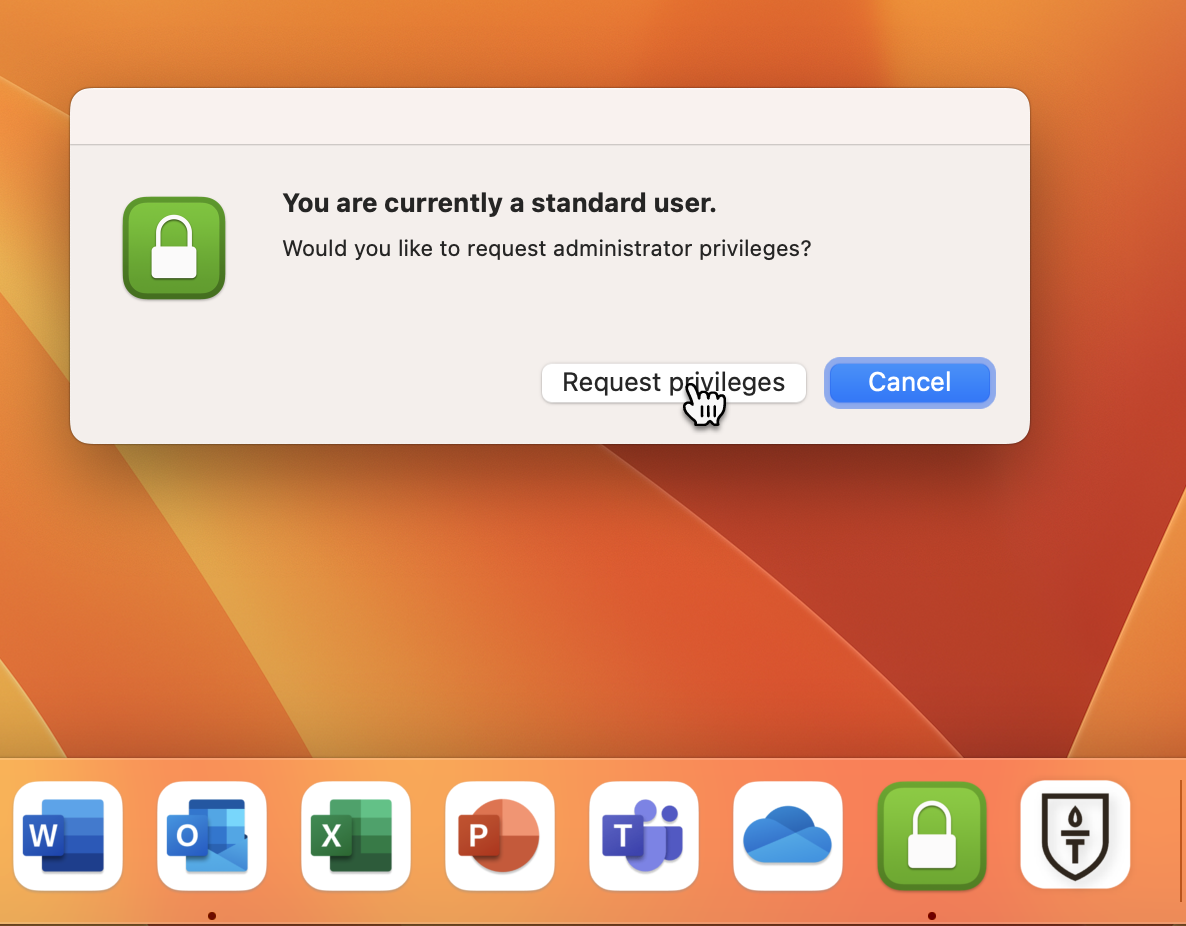
- When prompted for an Admin Username & Password, Enable Privileges by left-clicking on the Privileges application and selecting Request Privileges.
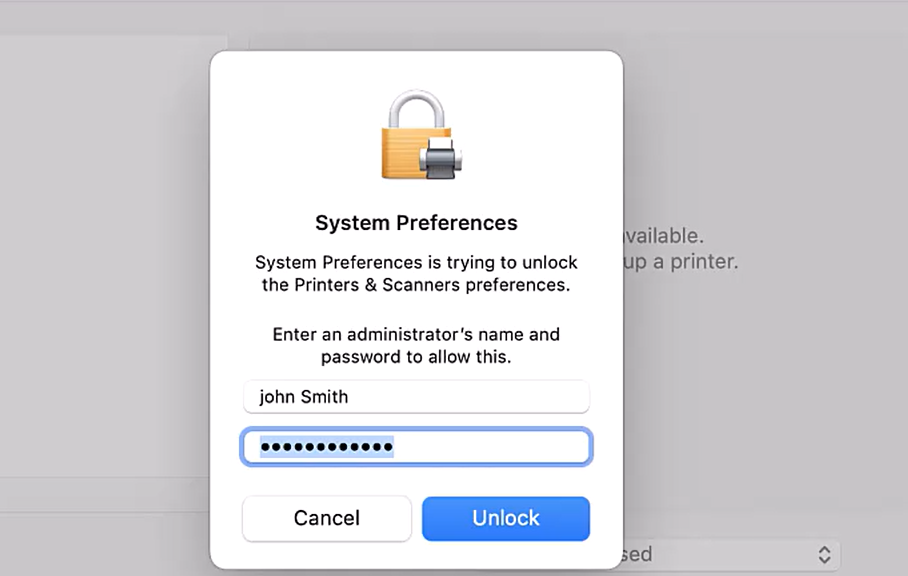
- You can now enter your Highlands College Password in the prompt to install what you need.
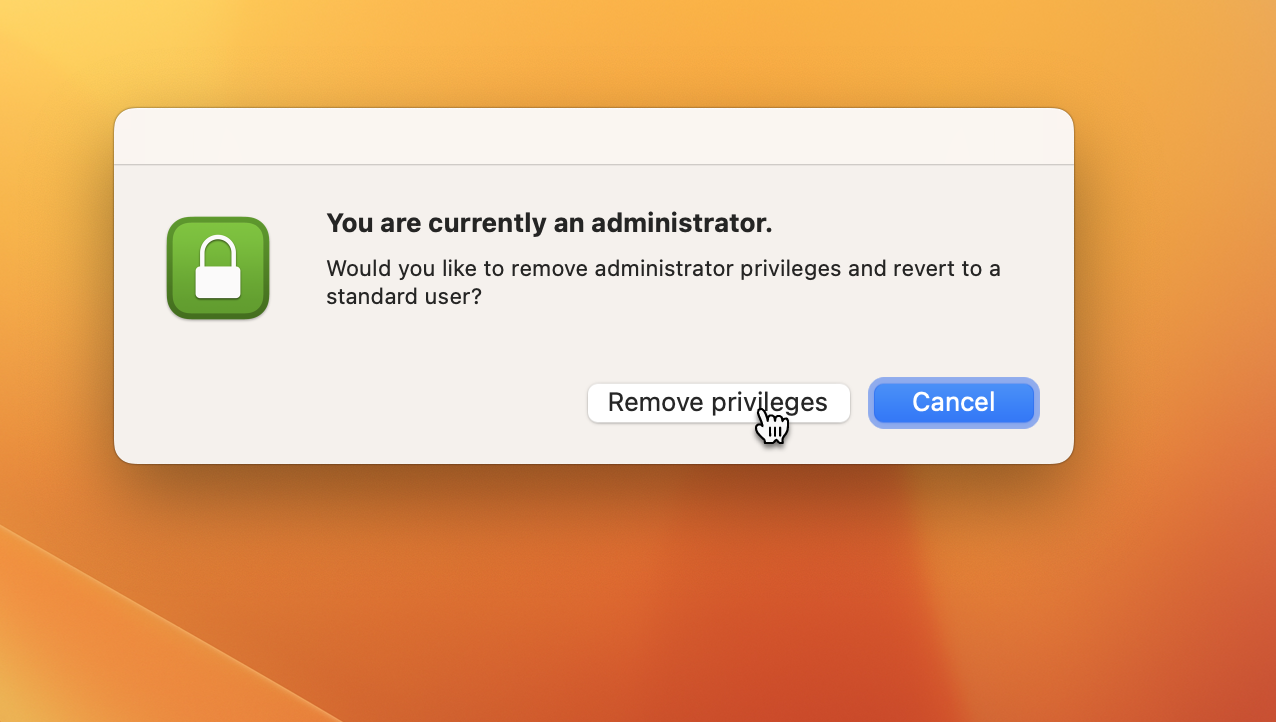
- When you're finished installing, repeat the steps listed above to close and Remove Privileges.
Comments
The article is closed for comments.