
Microsoft OneDrive keeps your files and photos backed up, protected, synced, and accessible on your Mac and across all your other devices. Easily share documents, photos, and other files with friends, family, and colleagues. Know that your files are safe with advanced security features that protect what's important.
OneDrive has made it easier than ever to access your shared files and folder content right from your Finder window. Follow these simple steps to add your Team and Group folders to your OneDrive location in your Finder window.
- Open any web browser and navigate to office.com
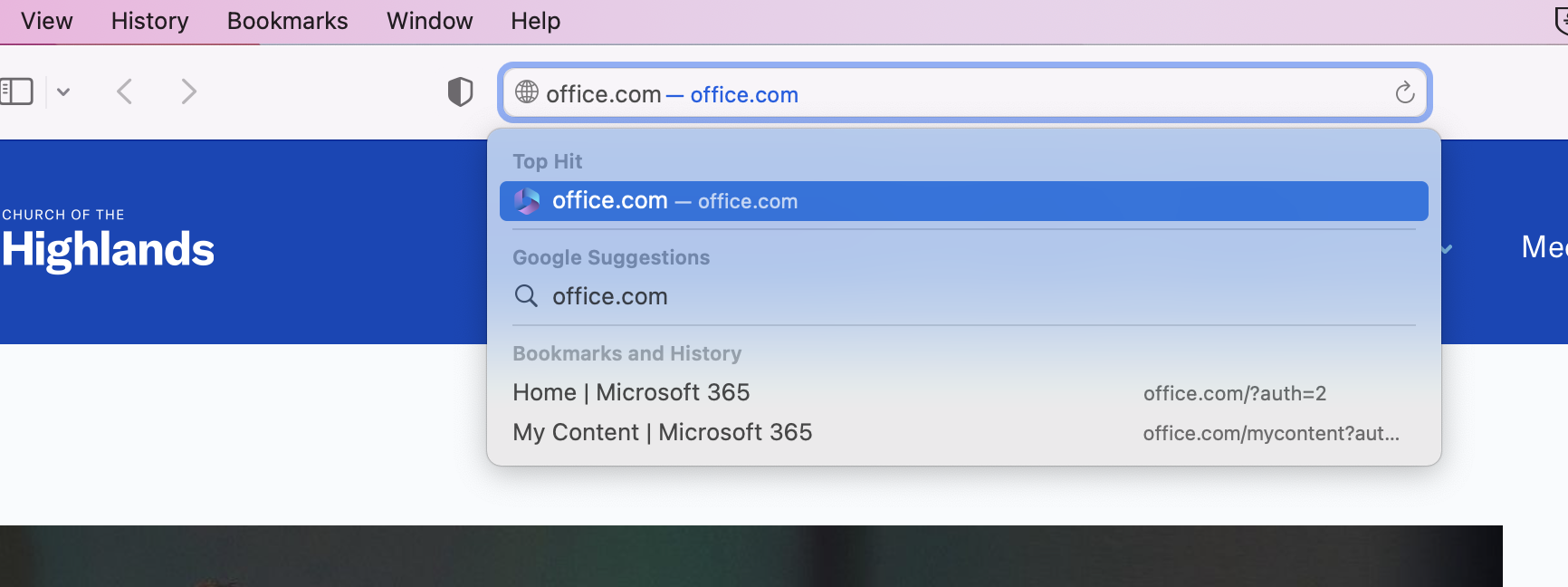
- Use your Highlands College login password to log into the site.

- Inside the site, locate the App Launcher in the top-left corner of the window. This will be identified by a grid of dots.
From the pop-out window, select OneDrive from the list.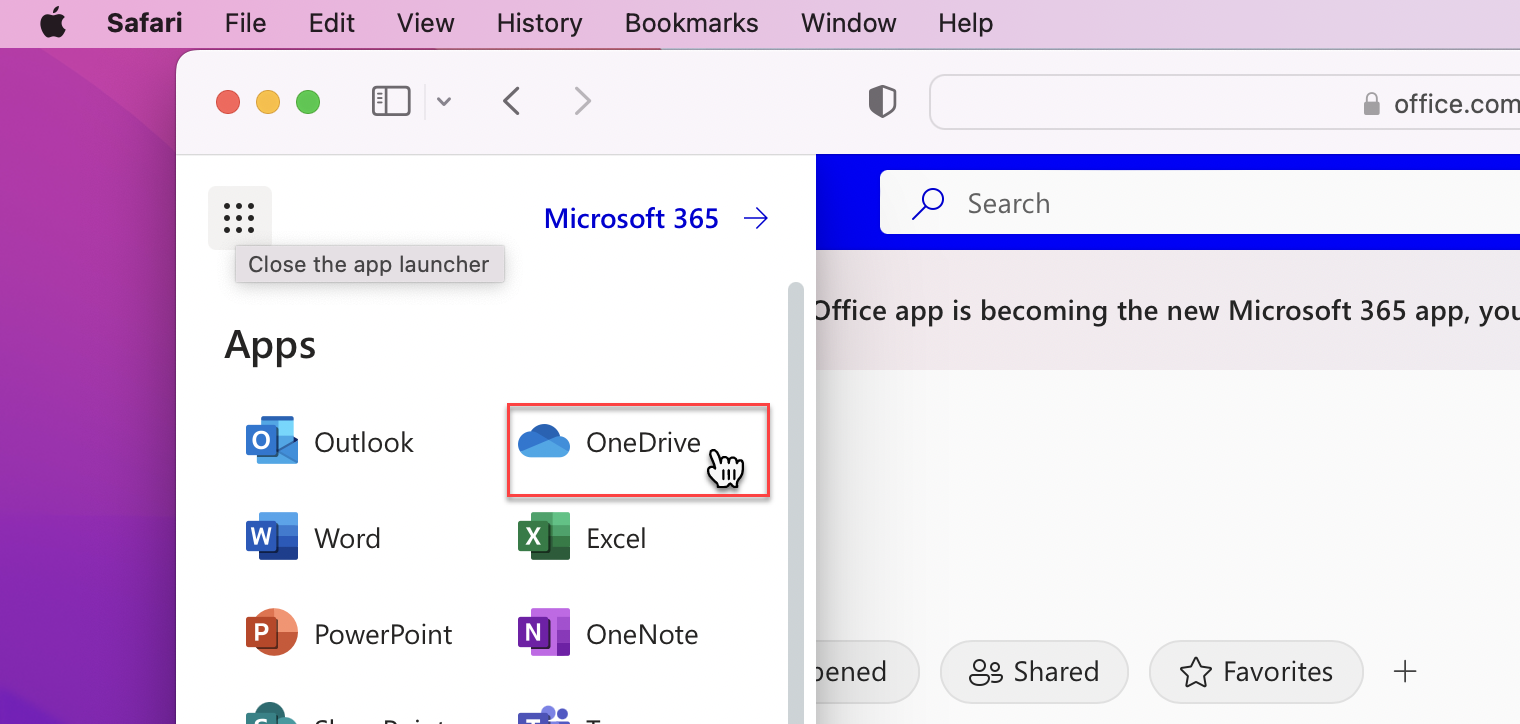
- On the left side of your window, select the link labeled 'More Places'
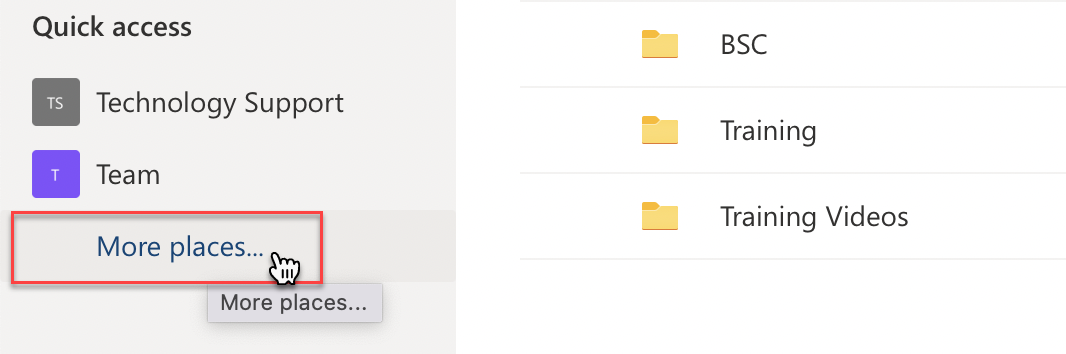
- Your shared content groups and folders will be listed here. Select the folder that you wish to add.

- Located across the top of the window, click the link labeled 'Add Shortcut to My Files'.
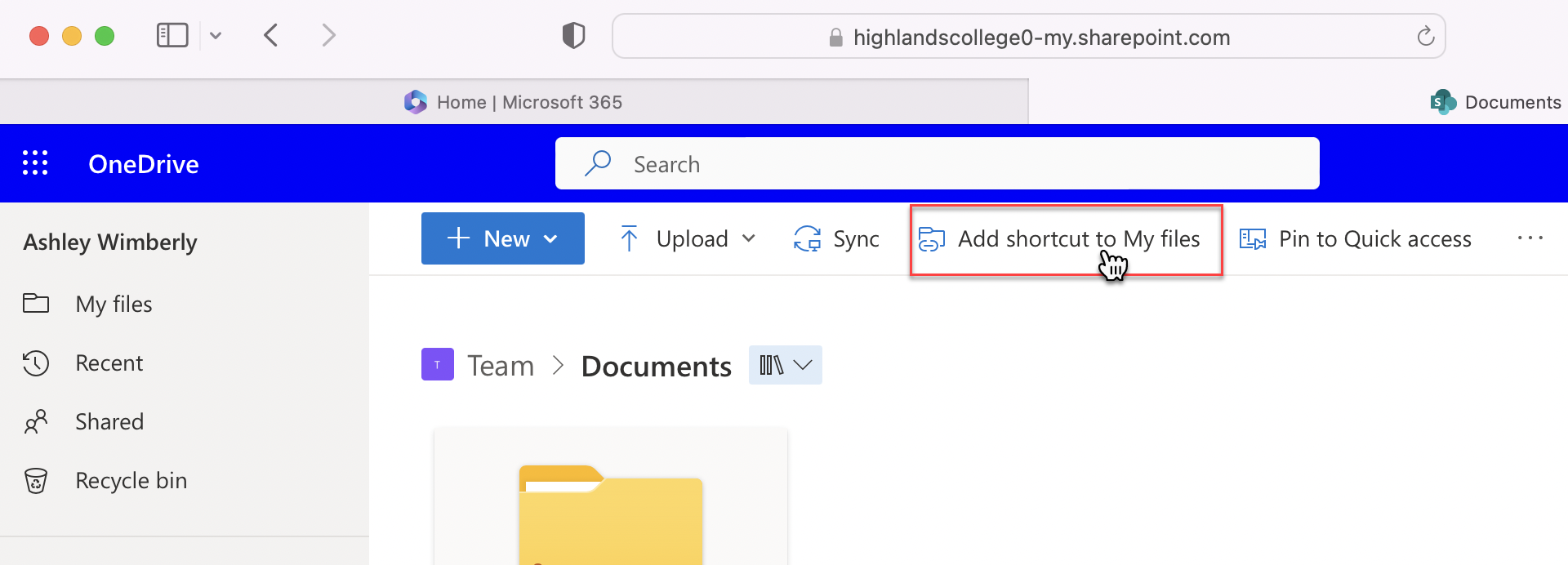
- In your Finder window, your newly added folder will be named Documents by default.
**Note: Notice the folder design and people icon in the bottom-right corner indicating this is a shared folder.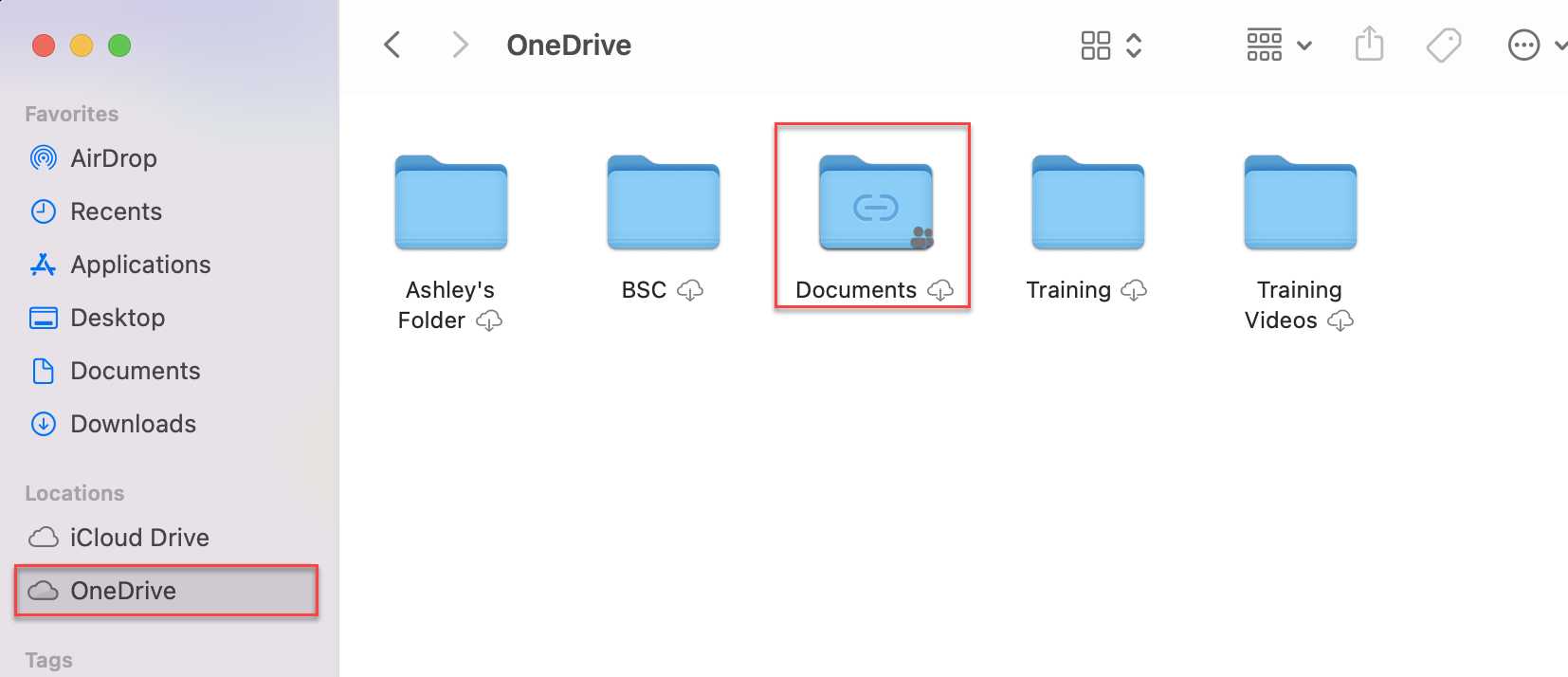
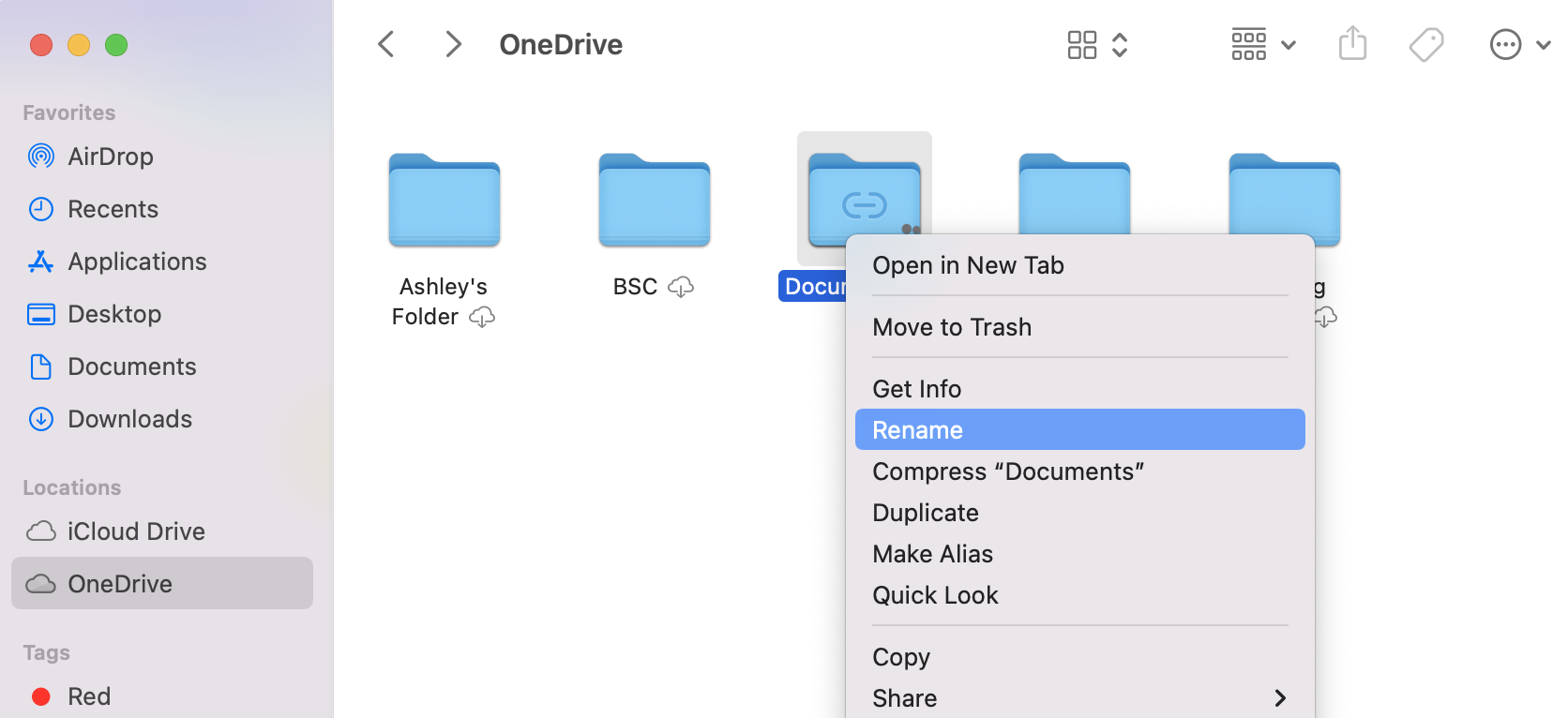
- If desired, you can change the name of this folder to something more relevant and easier to locate.
Comments
Please sign in to leave a comment.